

You’ve spent countless hours mastering keyframes, nailing motion graphics, and perfecting your compositing game in Adobe After Effects. But then… disaster strikes. A client wants a complex animation with nested expressions, dynamic parenting setups, or render times come to a crawl. Sound familiar? You’re not alone.
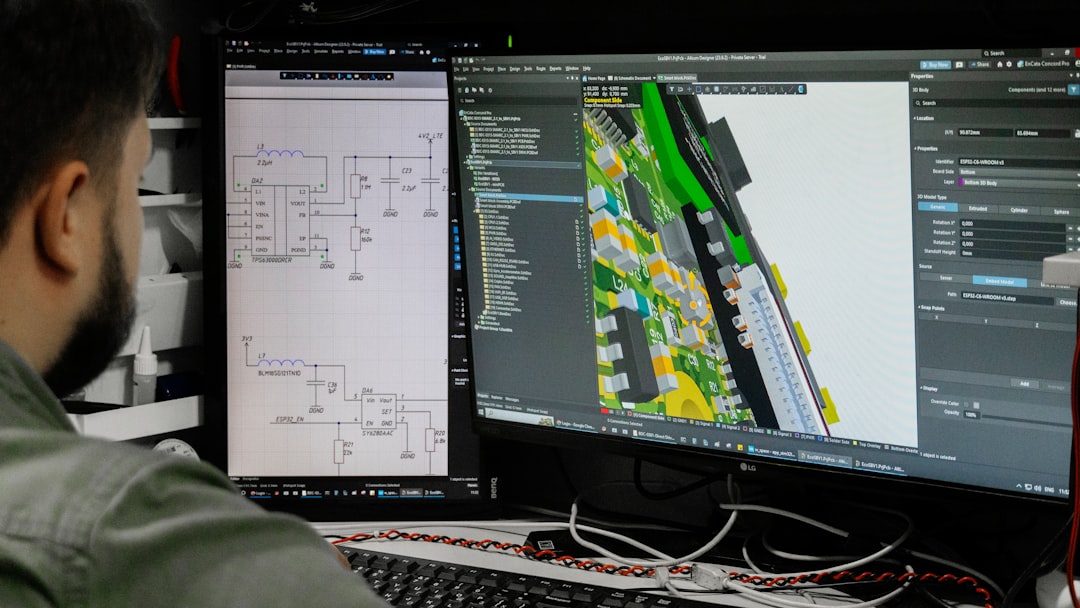
If you’re venturing into advanced After Effects, you’re bound to hit walls that beginners rarely even know exist. These aren’t just technical hurdles—they’re mindset shifts. And the best part? Every challenge has a solution when you know where to look.
1. Expressions That Break: The Hidden Logic Behind Dynamic Animations
When you first learn expressions—like using wiggle() or time*50—it feels like magic. Then comes the day when everything breaks because a single variable is misspelled or a layer name changes.
- Mistake: Using hardcoded layer names in expressions without considering renaming or duplication.
- Solution: Rely more on
thisComp.layer(index), relative referencing, or expression controls via sliders. - Tip: Always test after duplicating layers or renaming compositions.
The deeper you go, the more critical it becomes to understand how data flows through scripts and expression engines—not just plug-and-play tools.
Remember: Expressions aren’t shortcuts—they’re code under friendly syntax.
2. Render Times That Drag On Forever
Your machine grinds to a halt during preview playback or export, and you realizeize: you bit off way more than your system can chew.
This problem often stems from inefficient compositions filled with effects-heavy plugins, large resolutions, or unnecessary pre-comps.
- Clean up unused assets and purge memory with Edit > Purge > All Memory & Disk Cache.
- Use proxies for high-res footage until final output stage.
- Render preview segments rather than full-length sequences repeatedly.
- Optimize RAM usage by closing other applications while rendering.
You don’t need new hardware—just smarter workflow habits. Speaking of which…

3. Nested Pre-Compositions That Collapse Like Houses of Cards
Pre-composing seems simple at first—you select layers, press Ctrl+Shift+C (Cmd+Shift+C on Mac), and tuck chaos away. But later, updating something inside causes unexpected chain reactions across multiple scenes.
To avoid this mess:
- Name precomps clearly (e.g., “Intro_BG_Anim” instead of “Comp 3”).
- Avoid nesting too many levels deep unless absolutely necessary.
- Freeze moving properties outside of precomp if interaction isn’t needed.
Think of each pre-comp like a modular room in an apartment building—you want access when needed, but also clear boundaries so no neighbor’s noise leaks out unnecessarily.
4. Managing Large Projects Without Losing Your Mind
As projects grow—from short intros to multi-scene explainer videos—you run into organization nightmares. Where did that sound file go again?
Here’s how pros keep things sane:
- Create folder hierarchies early: Video Assets / Audio / Compositions.
- Color-code layers based on function (green=text, blue=backgrounds).
- Delete unused footage regularly using File > Scripts > Collect Files to Folder.
Your future self will thank you—and save hours sorting through cluttered timelines when revisions strike.
5. Expressions vs Scripts: Choosing the Right Tool for Automation
Once you feel comfortable with basic automation, confusion sets in: What’s the difference between expressions and scripts?
In short:
- Expressions: Modify values dynamically per frame within a composition.
- Scripts: Execute commands across multiple projects or UI elements.
Want to auto-update text every time a date changes? That’s an expression. Need to batch rename hundreds of layers? Script it.
While writing JavaScript-based scripts may seem daunting initially, there are plenty of free community libraries online to help guide you.

6. Performance Optimization For Creative Freedom
There’s nothing worse than hitting a creative wall because AE won’t play smoothly anymore. So how do experts maintain both performance AND creativity?
- Enable GPU acceleration in Preferences > Display.
- Reduce resolution temporarily during editing (press Caps Lock to toggle Draft Mode).
- Use fewer third-party plugins in active work comp; apply only once satisfied.
Balancing performance doesn’t mean sacrificing quality—it means knowing which parts of your project deserve attention at what stage of development.
7. Learning Curve Isn’t Linear – And That’s Perfectly Normal
One trap newcomers fall into is expecting linear progress—as if completing ten tutorials guarantees readiness for real-world jobs.
In truth, skill-building in After Effects looks less like climbing stairs and more like solving puzzles—you circle back, reassess, and build stronger foundations each time.
Rather than chasing completion, embrace cycles of experimentation:
- Try techniques freely—even if they fail.
- Analyze failures—what assumption broke down?
- Reintegrate lessons into newer workflows.
If you’re looking to accelerate this process, consider checking out structured courses like Adobe After Effects, designed for self-paced learners aiming for mastery beyond beginner tips.
Final Thoughts: Embrace the Complexity
Yes, mastering After Effects takes dedication—but those moments when everything clicks?
They’re worth it. Whether it’s pulling off a seamless 3D transition or syncing visual elements perfectly to audio cues—you’ll know you’ve leveled up.
So take these challenges head-on. Experiment fearlessly. Fail fast, learn faster.
Your next masterpiece is waiting in the timeline.


